Planning is crew planning software for motorsport teams. Put tests and races on the calendar, build the line-up of every car, track call-ups and count each person's working days against the days you agreed at the start of the year. Your planning data stays on your PC.

Explore the demoDemo for desktop

No installation · No account · Read-only preview

Download for Windows

Windows 10 / 11 · 30-day free trial
MONZA TEST Track days 29–30 Oct 10/13 confirmed
Schematic line-up: one row per car, one column per role. A person covering several cars spans their rows.
Car Box Engineer Mechanic Jolly Mech Coach
#7 Chassis C-101 · A. Bianchi B03 D. Marino 2 cars F. Conti V. Gallo all cars M. Ferri
#11 Chassis C-104 · J. Weber B04 G. LeoneA. Serra L. Greco
#23 Chassis C-108 · R. Silva B05 R. Galli E. Lombardi CONFLICT S. Costa 2 cars
#44 Chassis C-112 · M. Laurent B06 P. Rinaldi T. Fontana
Event On no car C. Ricci Sporting DirectorN. Bruno Truck Driver
  • Confirmed
  • Called
  • To call
  • Declined
  • CONFLICT Booked elsewhere on the same date
Schematic example with invented names. Not an app screenshot.

ReplacesOne Excel sheet per event

WorksOn Windows 10 / 11

DataSaved on your own PC

01 / THE SEASON

FROM THE CALENDAR.
TO THE LINE-UP.

Plan the season the way it runs: events first, then cars, then people. Planning keeps the dates, the line-up and the days of every crew member in one place.

  1. 01

    Put the event on the calendar.

    Year, Month, Week or Season view, with the week number always in sight. Add a test or a race in a few fields: series, arrival, setup from, track days with open pit or sessions, an optional return day, and the team's travel.

  2. 02

    Build the line-up.

    Add the cars with chassis, race number and drivers. Assign crew freely: several people on one car, one person across several cars, or on no car at all.

  3. 03

    Call up and count.

    Move each person from To call to Called, Confirmed or Declined. Working days are calculated from travel times with the day rules you write.

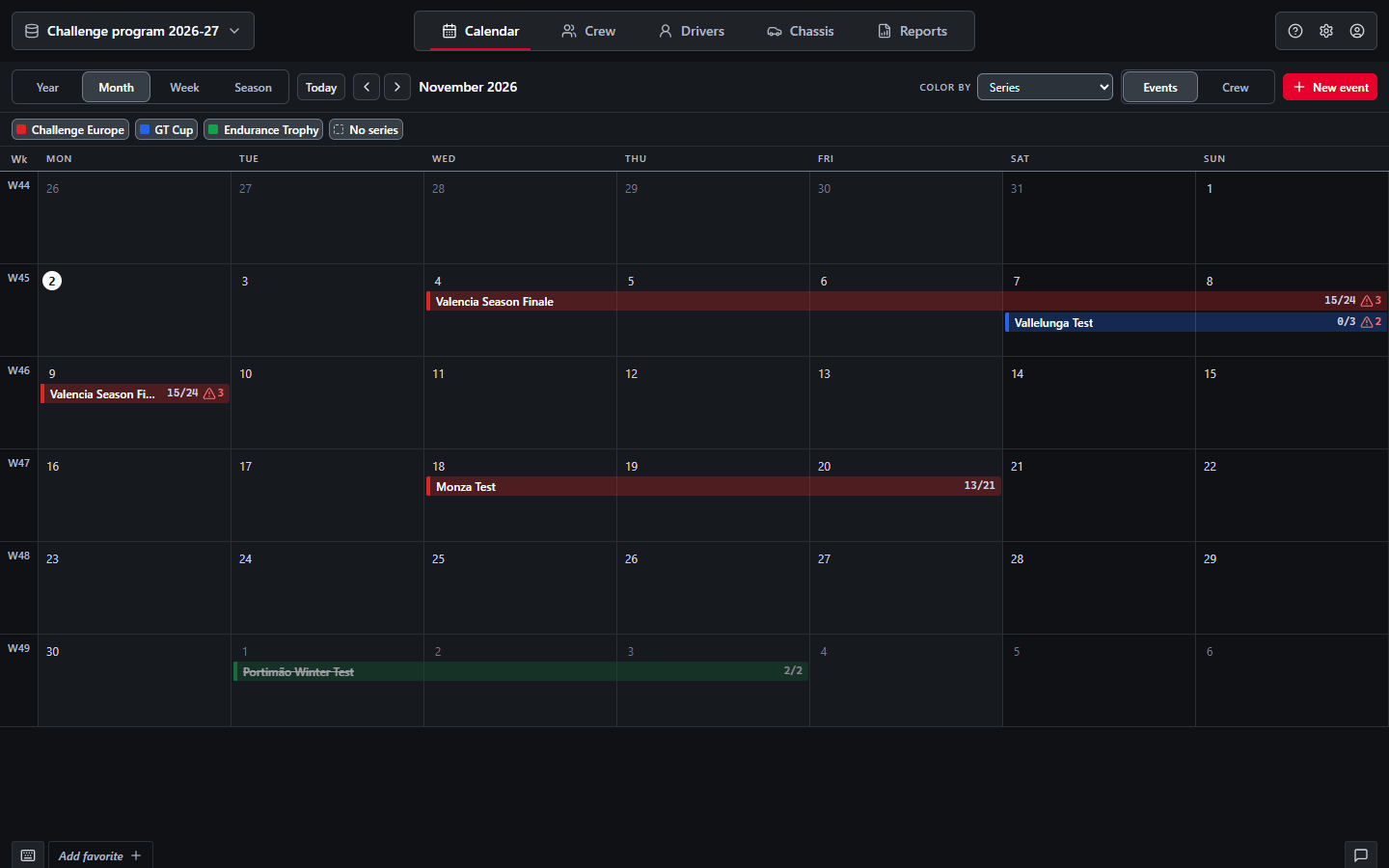
Planning Calendar, Month view of November 2026: event bars in the colour of their series, week numbers, a parallel test and a cancelled event struck through, with confirmed counts and conflict marks
Planning / Calendar → Month · Colour by series · Invented example data
02 / LINE-UP

THE SHEET
YOU KNOW.
THE CHECKS
IT NEVER HAD.

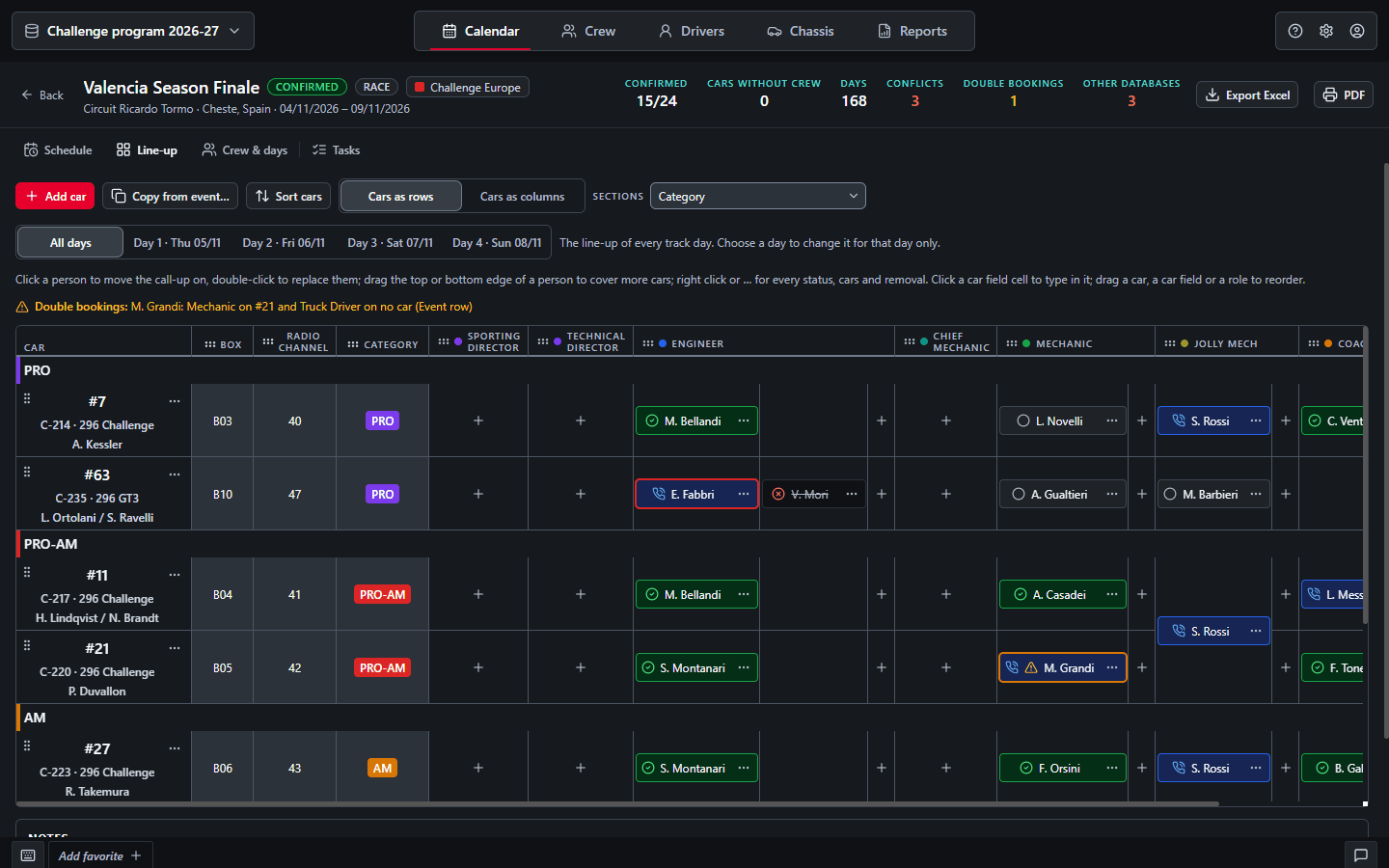
Cars as rows, or Cars as columns. By default each car is a row with its chassis, number and drivers, and the roles run across; one switch turns the sheet around. One person covering several cars shows as a merged cell, and an Event row holds the people on no car, such as the Sporting Director or the Truck Driver.

The right person, at a glance. The picker is filtered by role and shows, next to each name, any conflict on those dates and the agreed days still left.

Back to Excel when you need it. Export the line-up to Excel in the same shape, or to PDF with print preview. Copy cars and line-up from a previous event to start the next one.

CALL-UPEvent: 15/18 confirmed
To callEvery assignment starts here
CalledPlanning remembers when: "Called 3 days ago"
ConfirmedCounts toward the event's confirmed total
DeclinedStays visible, struck through. Its days stop counting.

Call-ups are a status you set after calling or messaging the person yourself. Planning does not contact your crew.

Planning line-up of a race with eight cars as rows, split into sections by category: Box, radio channel and category of each car, then engineers, mechanics, jolly mechs and coaches by role, with call-up marks, a declined engineer struck through and a double booking warning
Planning / Event → Line-up · Cars as rows, sections by Category · Invented example data
03 / WORKING DAYS

YOUR RULES.
EVERY DAY
COUNTED.

Assign a person to an event and Planning creates their working days, from departure to return home. Days in between count as one. Departure and return days take the value your day rules give them.

Rules you write. Each rule looks at a departure or a return time: before, or at or after, an hour of your choice, on the same day or the next. The first rule that matches sets the value; when none matches, the day counts as 1.

Edits that stay. Change the type, location or value of any day by hand. A manual day is marked and never recalculated, until you set it back to automatic. Before a rule change touches upcoming events, Planning tells you how many days change, and for whom.

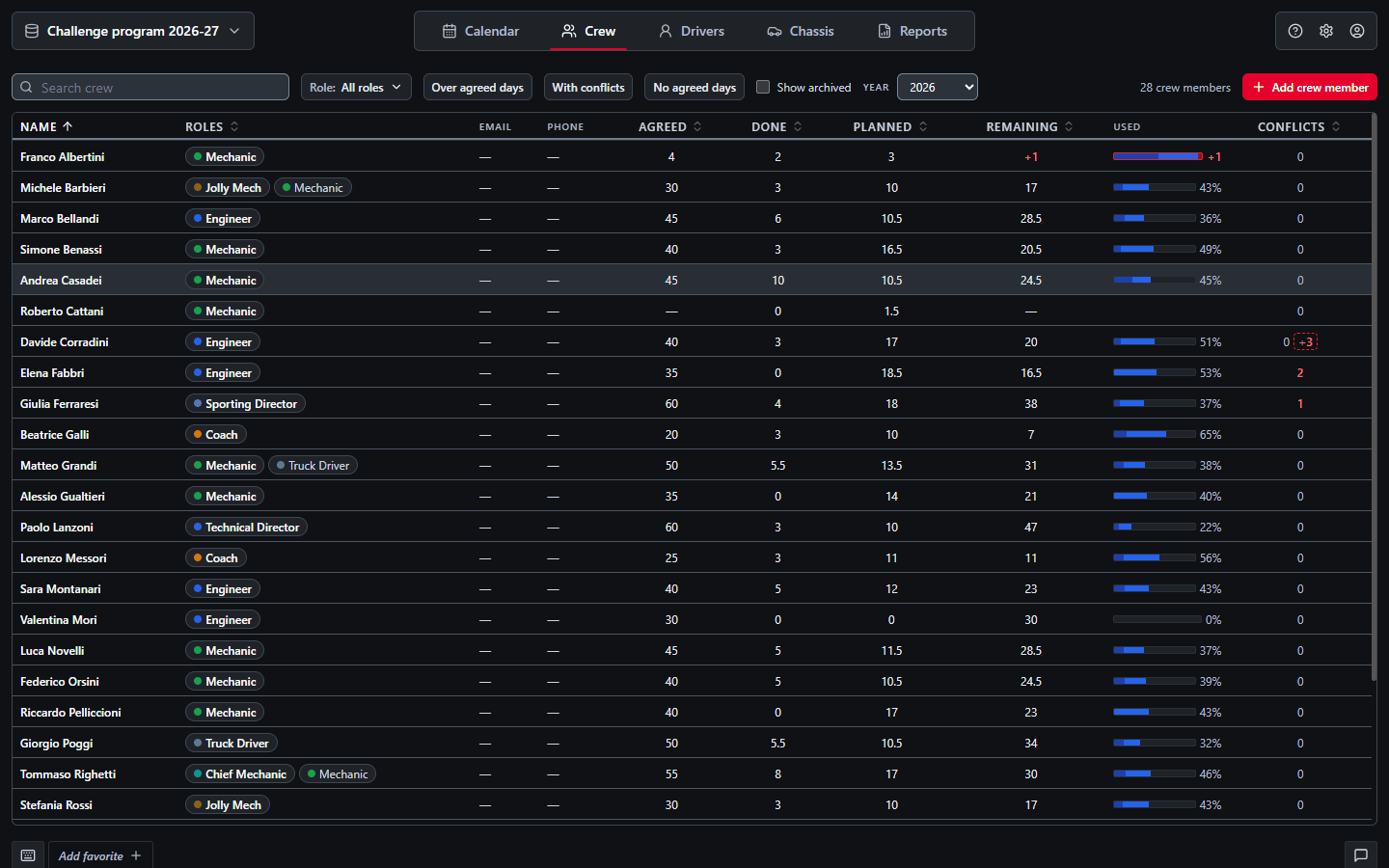
Agreed days. Set the days agreed with each crew member for the year. Planning shows Agreed, Done, Planned and Remaining, and turns red with the overrun, such as +2. Covering three cars for three days is still 3 days.

TRUCK DRIVER · MONZA TESTExample
  • Departure at or after 14:00 → 0.5
  • Return home at or after 00:00 the next day → 1.5
27 OctDeparture 15:000.5
28 OctArrival, setup1
29 OctTrack day1
30 OctTrack day, home at 01:30 next day1.5
TotalCounted against the agreed days4 days

Worked example with two rules written by the user; no rules are preinstalled. A late return counts on the day the trip home starts.

Planning Crew list: every crew member with roles, agreed, done, planned and remaining days for the year, a used bar for the agreed days, one person over the agreed days in red, and upcoming conflicts
Planning / Crew · Agreed, Done, Planned, Remaining · Invented example data
04 / OVERVIEW

ONE PERSON.
TWO PLACES.
YOU WILL KNOW.

A crew member on two events on the same date, or on an event and a workshop day, is flagged in red in the line-up, in the Crew view and on the person's card. It is a warning, never a block: you decide.

  1. 01

    Crew view.

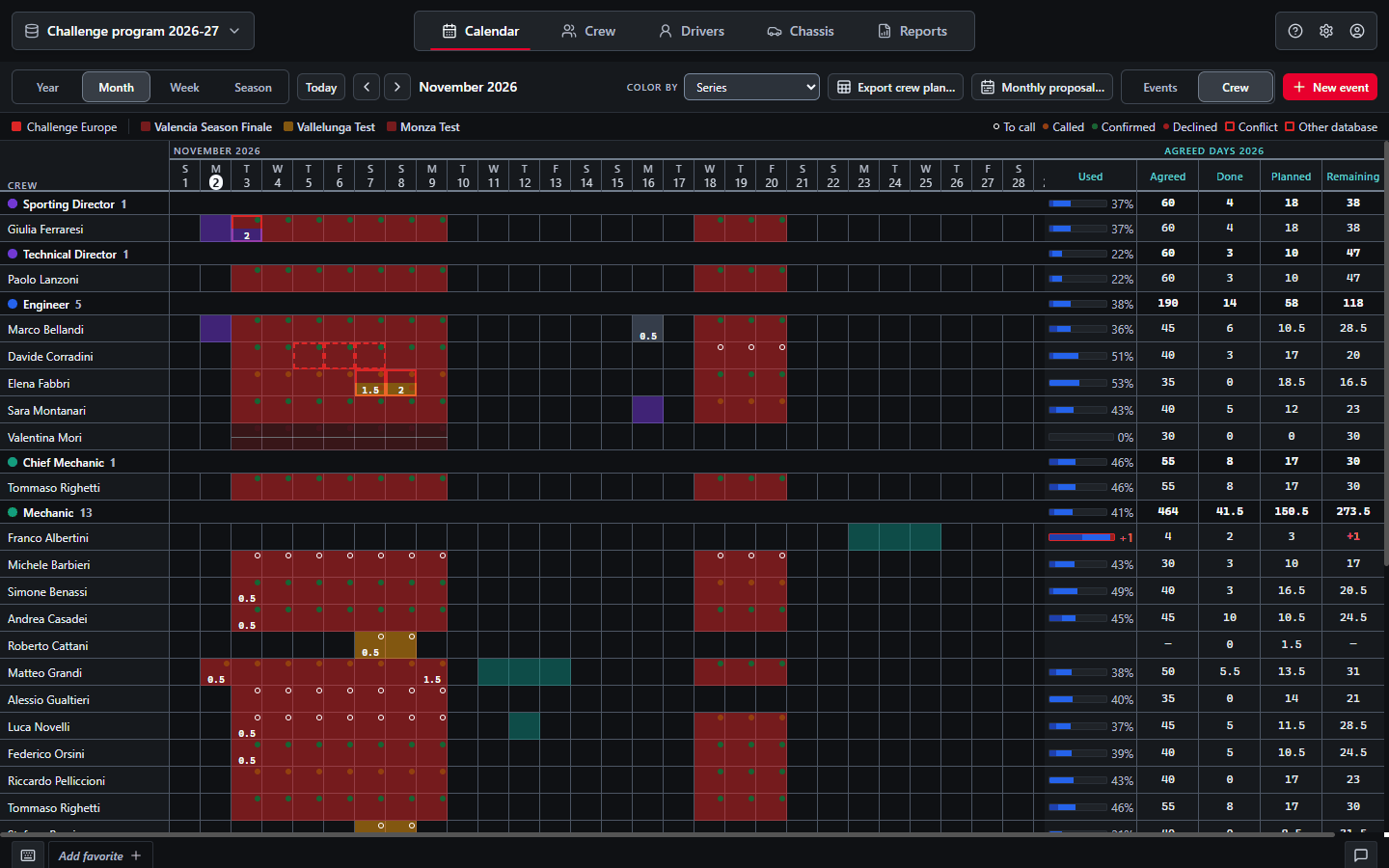
    The same calendar with one row per crew member, grouped by role: who is where, day by day, with call-up marks and the year's counters at the side.

  2. 02

    Beyond the track.

    Add workshop, office or remote days outside events. Two half days on the same date are not a conflict; a Cancelled event stops counting.

  3. 03

    Reports.

    Days per person over any period, filtered by role, location, day type, event and series, compared with the agreed days. Print to PDF, or export the crew plan of the same period.

Planning Calendar in Crew mode for November 2026: one row per crew member grouped by role, days coloured by event with call-up marks, conflicts outlined in red, workshop and office days, and the agreed-days counters of the year at the side
Planning / Calendar → Crew · Who is where, day by day · Invented example data
05 / SERIES

ALL YOUR
SERIES.
ONE SEASON.

The season sheet and the crew sheet your team keeps today, built from the same calendar: each series in its own colour, the weeks in order, and who is where on every day.

  1. 01

    Series in colour.

    Add the series you race in, each with a name, a short name and a colour. Events take that colour on the calendar, and a row of chips shows or hides each series. A private test can have none.

  2. 02

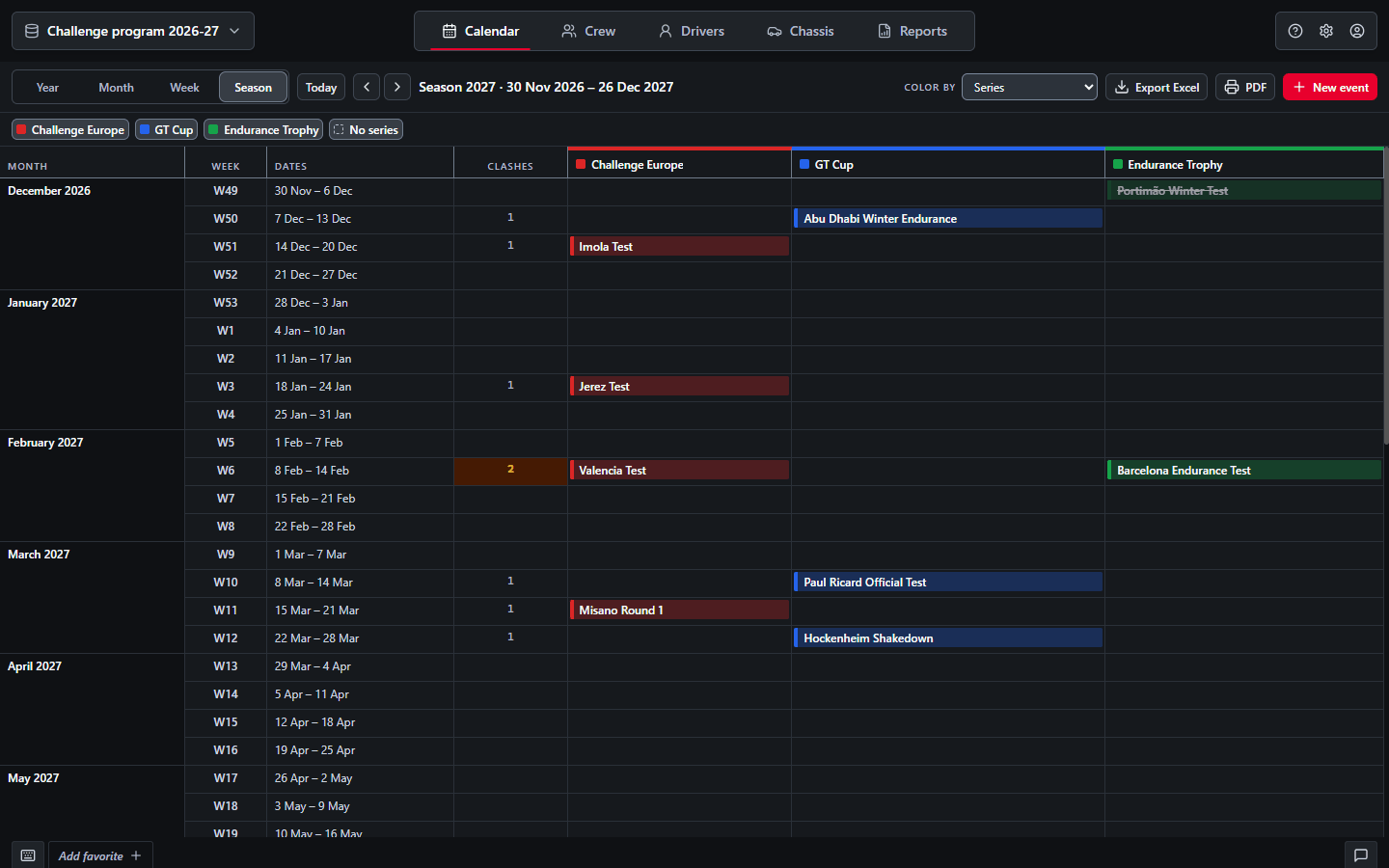
    Season view.

    One row per week with its number, starting in December for the winter series; one column per series, in its colour. A Clashes column counts the events of each week. Export the season to Excel or PDF.

  3. 03

    Crew plan.

    The sheet to send to your crew: days down the side, people across, and where each person is: the event city, RETURN or WORKSHOP. X is confirmed, ? not yet. Export to Excel or PDF and send it yourself.

Planning Season view of 2027: one row per week with its number and dates, one column per series in its colour, a cancelled test struck through and a week with two events highlighted in the Clashes column
Planning / Calendar → Season · Weeks × series, with the clashes · Invented example data
06 / YOUR DATA

ONE PLANNER.
YOUR PC.
YOUR FILES.

Planning is built for the person who plans. Crew members and drivers are records in your planning, not users of the app, and their details stay on your computer.

A database for each series. Keep Ferrari Challenge, GT3 and Hypercar apart: each database has its own crew, drivers, chassis, calendar and settings, and you open one at a time. A person already booked in another database on the same dates is still flagged.

Move and merge. Export a whole database to a file and import it on another PC as a new database. Or export only the lists you choose, such as crew, settings or events, and import them into another database: a preview shows what is added, merged or skipped, and Undo takes it back.

Local and backed up. Events, crew, drivers, chassis and days are saved on your computer, in a separate folder for each account, with no copy in the cloud. Create a backup file at any time and restore it on another PC.

BEFORE YOU START

A FEW PRACTICAL
QUESTIONS.

Who is Planning for?

For the person who plans a motorsport team's crew across tests and races: team manager, sporting director, operations or logistics. In this version one account plans for the whole team.

Do my crew members need an account?

No. Crew members and drivers are records in your planning, not users of the app. Planning sends them nothing: a call-up is a status you set after calling or messaging them yourself.

Can it replace our Excel sheet for each event?

That is the starting point. The line-up keeps the same shape, one row per car or one column per car as you prefer, and exports back to Excel in the shape you see when you need to send it. Planning adds the season around it: calendar, call-ups, working days and conflicts.

How are working days calculated?

From each person's departure and return home. Days in between count as 1; departure and return days follow the day rules you write in Settings, such as a half day for a departure at or after 14:00. Covering several cars does not multiply the days, and a Cancelled event or a Declined call-up stops counting. Any day can be changed by hand.

Where is my data stored? Does it need internet?

Planning data is saved on your PC, with no copy in the cloud: to move it to another PC, create a backup or export a database. Internet is required to create your account, sign in and check access from time to time. After a successful check, full access remains available offline for up to 30 days; after that, your data stays available read-only, for consultation, export and backup, until access is checked again.

What about the personal data of my crew?

Names, roles, contacts and working days of your crew are personal data that you, or your team, enter and are responsible for, including telling those people that you keep their details. They stay on your computer: MotorsportSoftware does not receive them, and they are never part of usage reports. The Privacy Notice explains what that means for you.

How does the trial work, and what does a licence cost?

Install Planning, create your account in the app and verify your email: your 30-day free trial starts immediately. To keep working after the trial, contact sales for a licence and its price: Sales assigns it to your account, with no licence key to enter. In the last 7 days of the trial the app reminds you and prepares the email for you. If the trial ends first, your data stays available read-only.

Can several people plan together?

Not in this version: an account belongs to one person, and planning data is not synchronised between computers. To hand a plan over or move it to another PC, export a database, or only the lists you need, and import it there; lists are merged with what the other database already holds.

More questions? Email us ↗

DOWNLOAD

PLAN THE NEXT
TEST DAY.

Download and install the app, then create your private account inside Planning. Verify your email with the activation code and your 30-day free trial starts immediately. After the trial, Sales sets up your licence: contact sales for the price.

No website form or licence key is required.

MSS Planning is not code-signed, so Windows SmartScreen may warn that the publisher is unknown when you open the installer: choose More info, then Run anyway. Download the installer only from this page.

SystemWindows 10 / 11, 64-bit

AccountInternet required for account setup

Trial30 days from email verification