App Screens
The app is a guided flow. Every screen and dialog is explained below.
License Activation
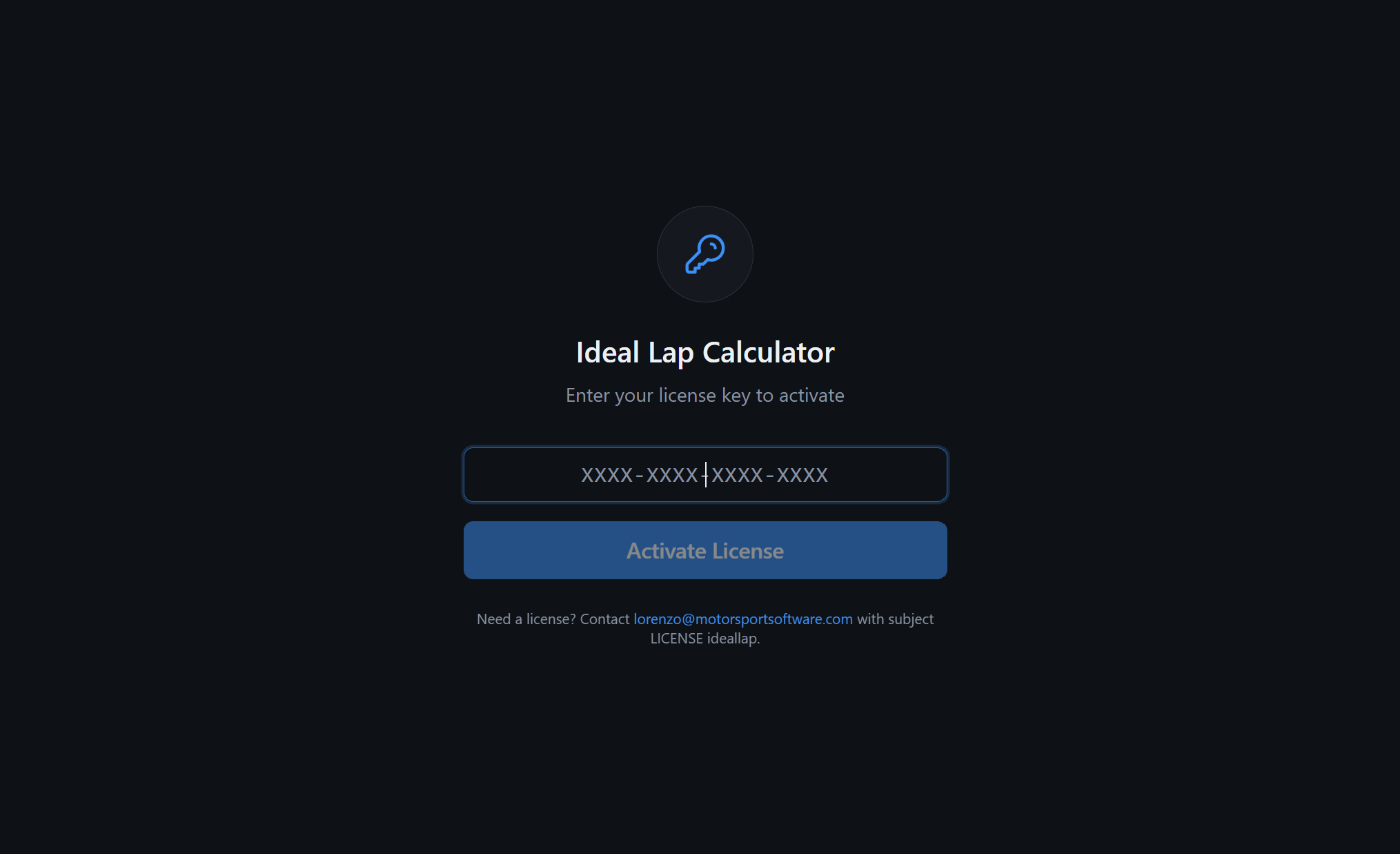
On first launch (or when no valid license is found), enter your key in the format XXXX-XXXX-XXXX-XXXX and click Activate License.
- Paste/enter the key (dashes are auto-formatted).
- Press Enter to activate when complete.
- If activation fails, confirm the key and internet connectivity.
- Licensing controls access to the desktop app.
- Once activated, you can proceed to data loading.
- Some licenses support a limited offline grace period.
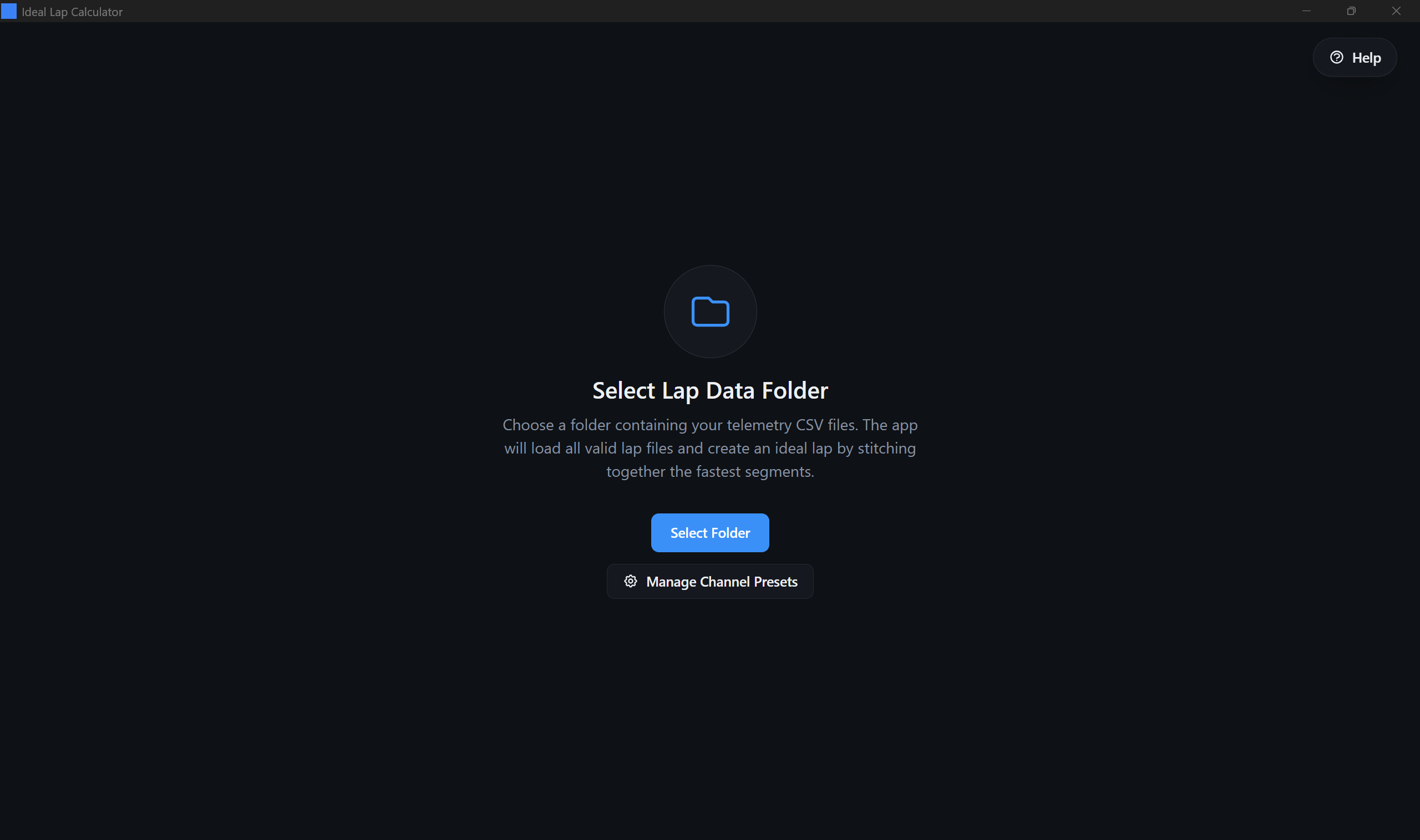
Select Lap Data Folder
Choose a directory containing your telemetry CSV files. The app reads all CSV files in the folder (ignoring its own exports), detects the CSV format, and prepares the data for analysis.
- Select Folder: opens your OS folder picker.
- Channel Assignment: review and adjust detected channels before loading all laps.
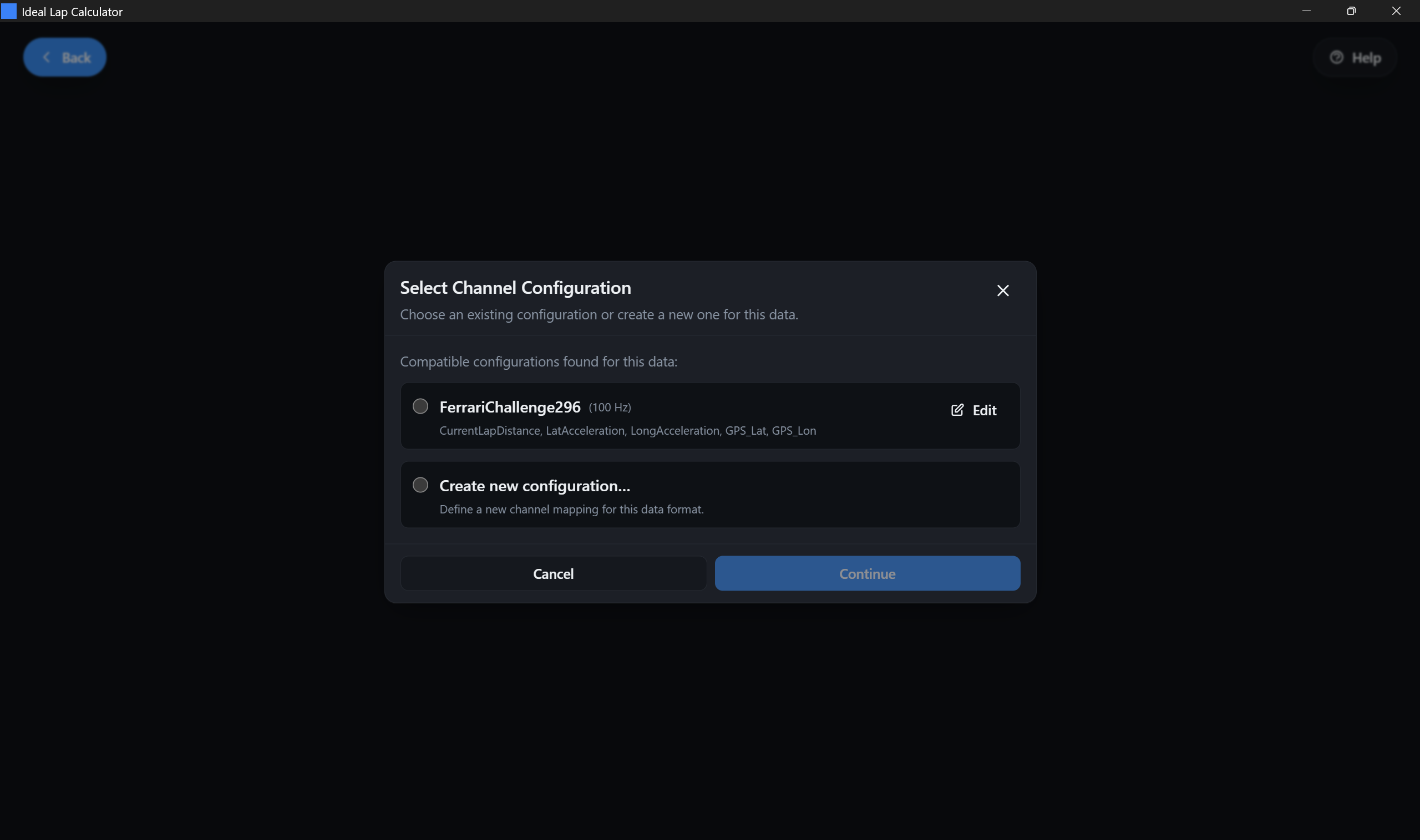
Select Channel Configuration (Preset)
When your CSV headers match one or more known mappings, the app lists compatible presets. Pick one to load laps quickly, or choose Create new configuration... to map columns manually.
- Presets can be built-in or custom.
- Presets may display a sampling frequency (used when no Time column exists).
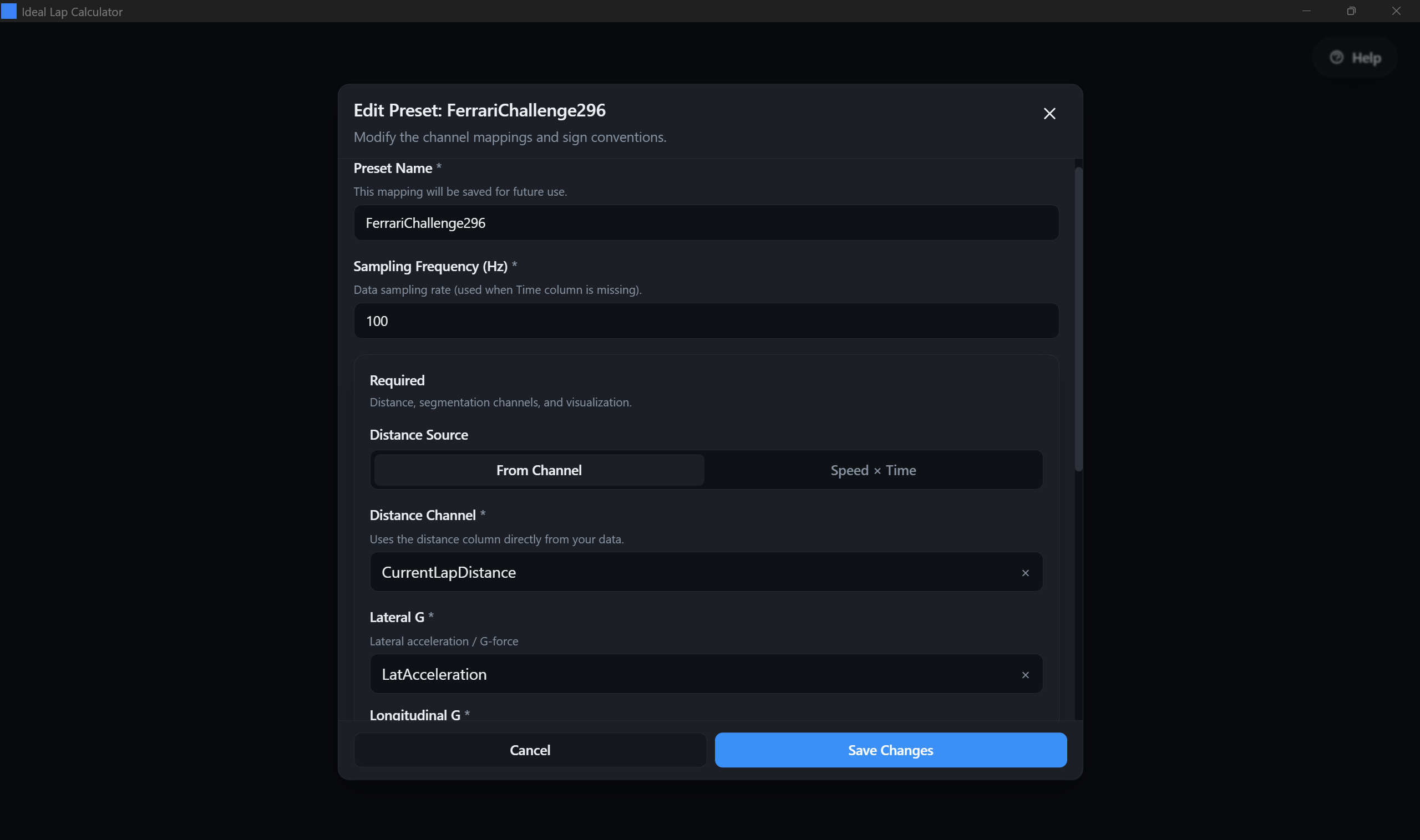
- You can edit a preset before continuing.
Channel Assignment
This is the most important setup screen. You map your CSV column names to the channels the app needs for segmentation, timing, and track visualization. A correct channel assignment is the difference between clean results and confusing results.
- Distance source: from a distance column or calculated from Speed x Time.
- Lateral G: optional for segmentation; used as reconstructed-track fallback when yaw rate is unavailable.
- Longitudinal G: used for auto-segmentation and braking visualization on the track.
- Track visualization: GPS lat/lon or reconstructed mode (requires Speed; yaw rate improves quality if available).
- Sign conventions: fix channels where "left/right" or "brake/accel" are inverted.
- Unit overrides: force km/h vs m/s, G vs m/s², meters vs feet, deg/s vs rad/s.
- Lap number (optional): required for multi-lap CSVs to split laps reliably.
For "Reconstructed" track mode, the app uses available telemetry channels to draw a usable track map when GPS is not present. Accuracy depends on your data quality and channel correctness.
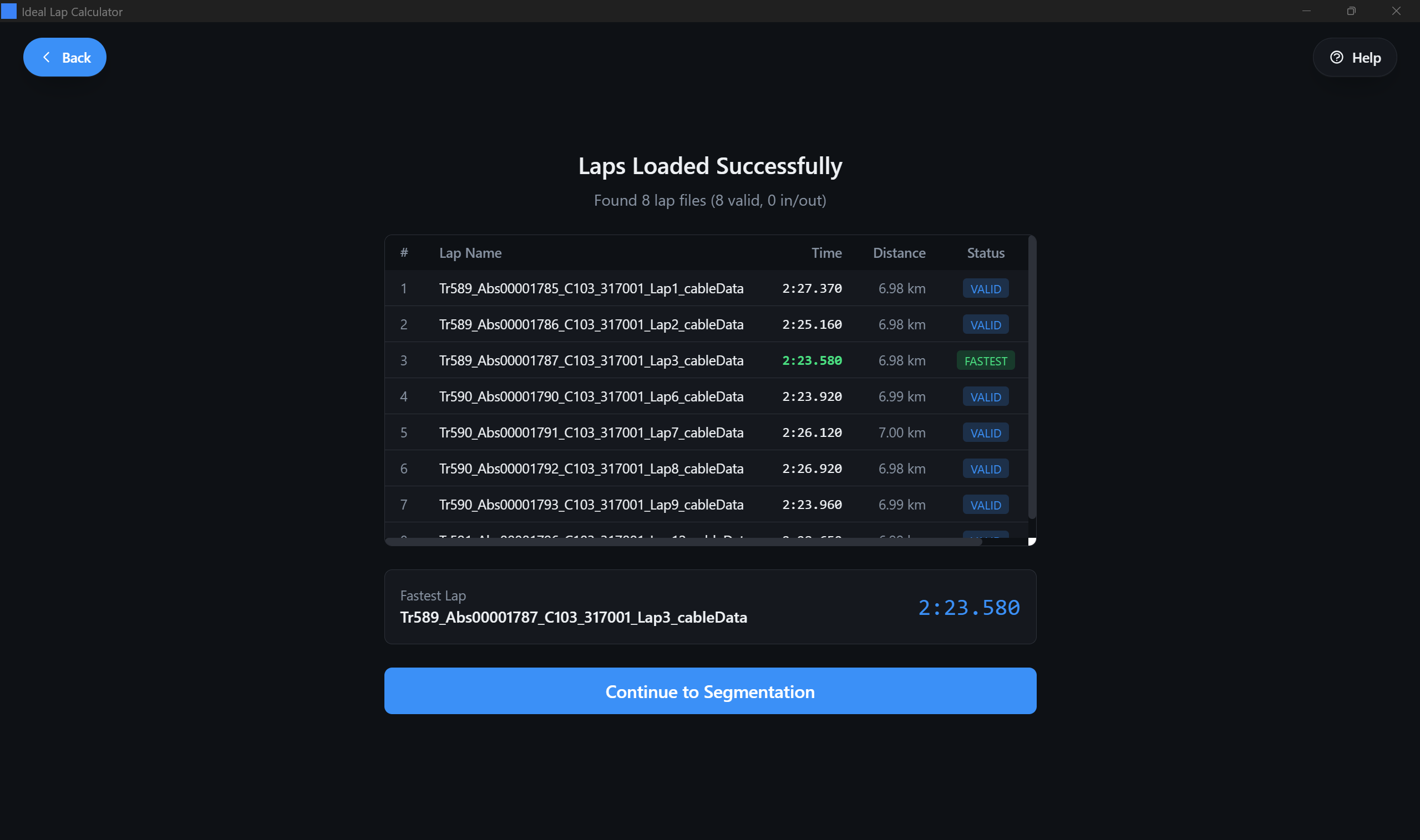
Laps Loaded Successfully
After data loading, the app shows a lap table. It highlights the fastest valid lap and flags laps that look like in/out laps (usually much slower than the median).
- Confirm the number of laps and their lap times.
- Remove any lap that should not be part of the ideal lap set (offs, traffic, invalid runs).
- If the track layout fails to generate, fix channel mapping and reload.
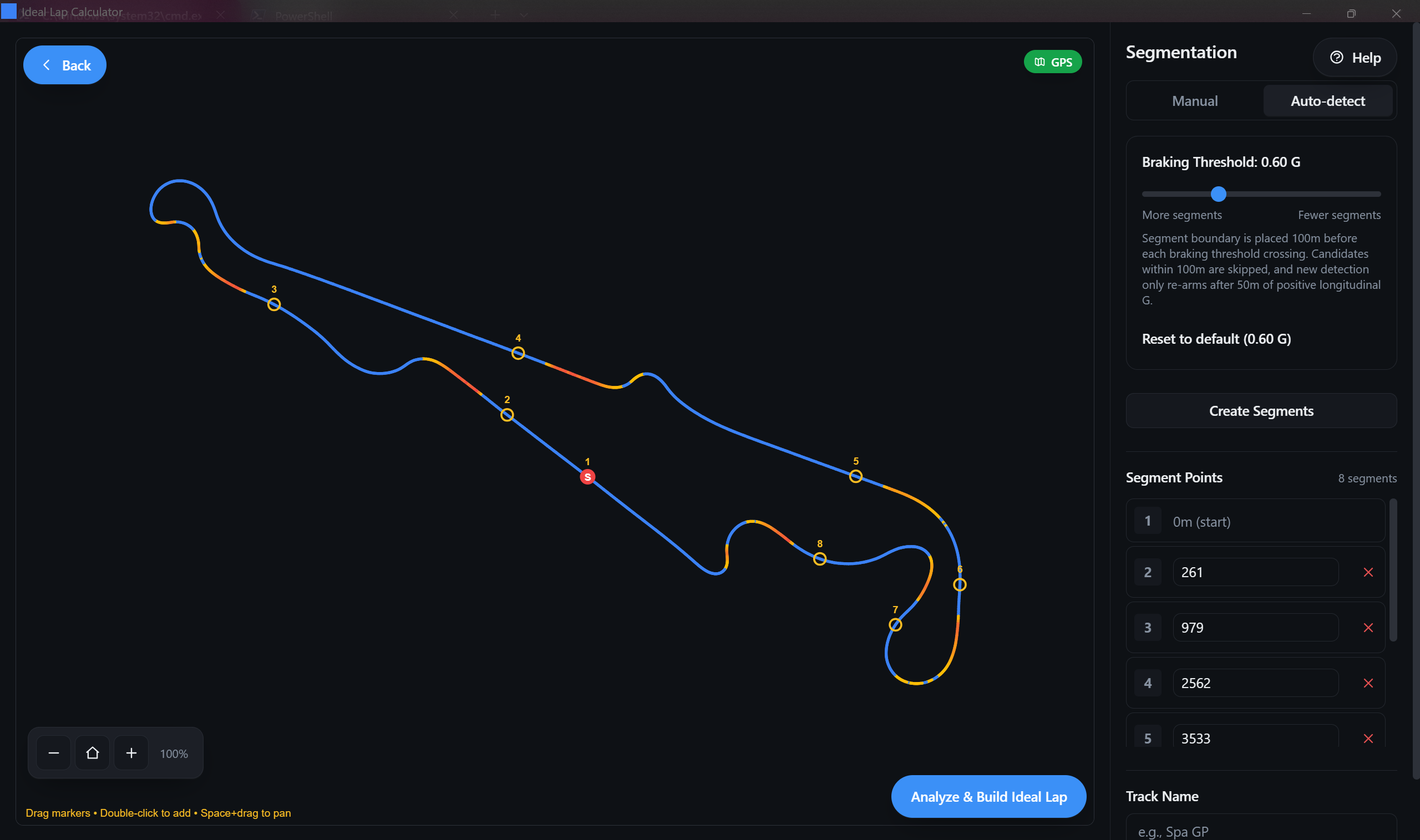
Segmentation & Track Editor
Create, edit, and validate segments. The left side shows a track canvas with interactive boundaries. The right side shows segmentation controls and a segment list editor.
- Drag markers to move boundaries.
- Double-click to add a boundary at that point.
- Space + drag to pan.
- Use the zoom buttons to zoom in/out and reset view.
- A badge indicates track source (GPS vs non-GPS mode).
- Manual: by count or by distance length.
- Auto-detect: braking-threshold segmentation with adjustable sensitivity.
- Save/load segmentations for specific tracks.
Once you have at least 2 segments, click Analyze & Build Ideal Lap to compute the result. If the button is disabled, you likely have no segments yet.
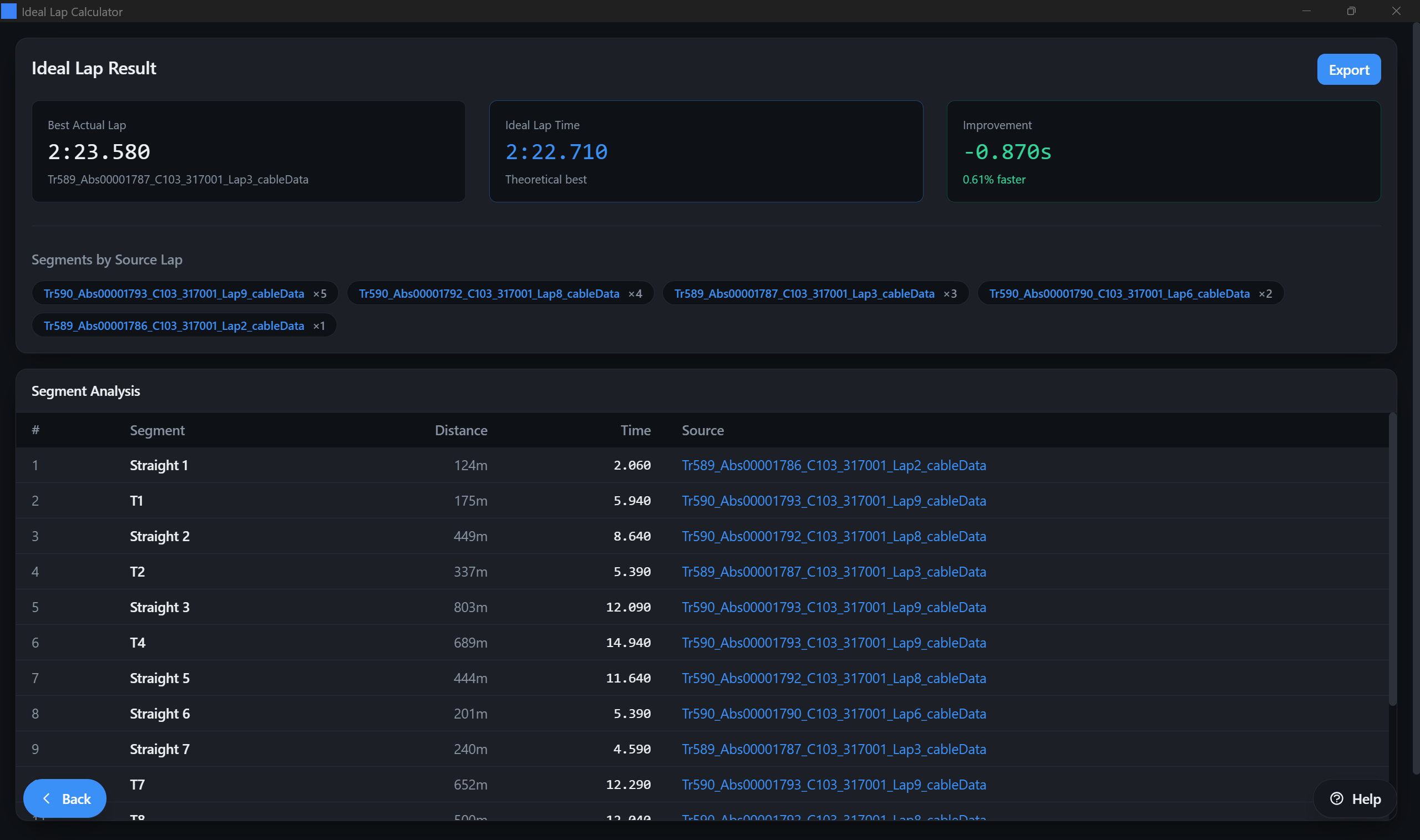
Ideal Lap Results
The results screen summarizes the best actual lap time, the ideal lap time, and the improvement. It also shows a segment table listing each segment's best time and which source lap produced it, plus an Export to CSV button to save the generated ideal lap.
- Best Actual Lap: fastest full lap in your dataset.
- Ideal Lap Time: sum of best segment times.
- Improvement: delta vs best actual.
- Segments by source: how many segments each lap contributed.
- Export to CSV: saves the ideal lap result for use in external telemetry tools.
- Lists segments in order with distance and time.
- Shows the source lap name for each best segment.
- Use this to identify where different laps were faster.
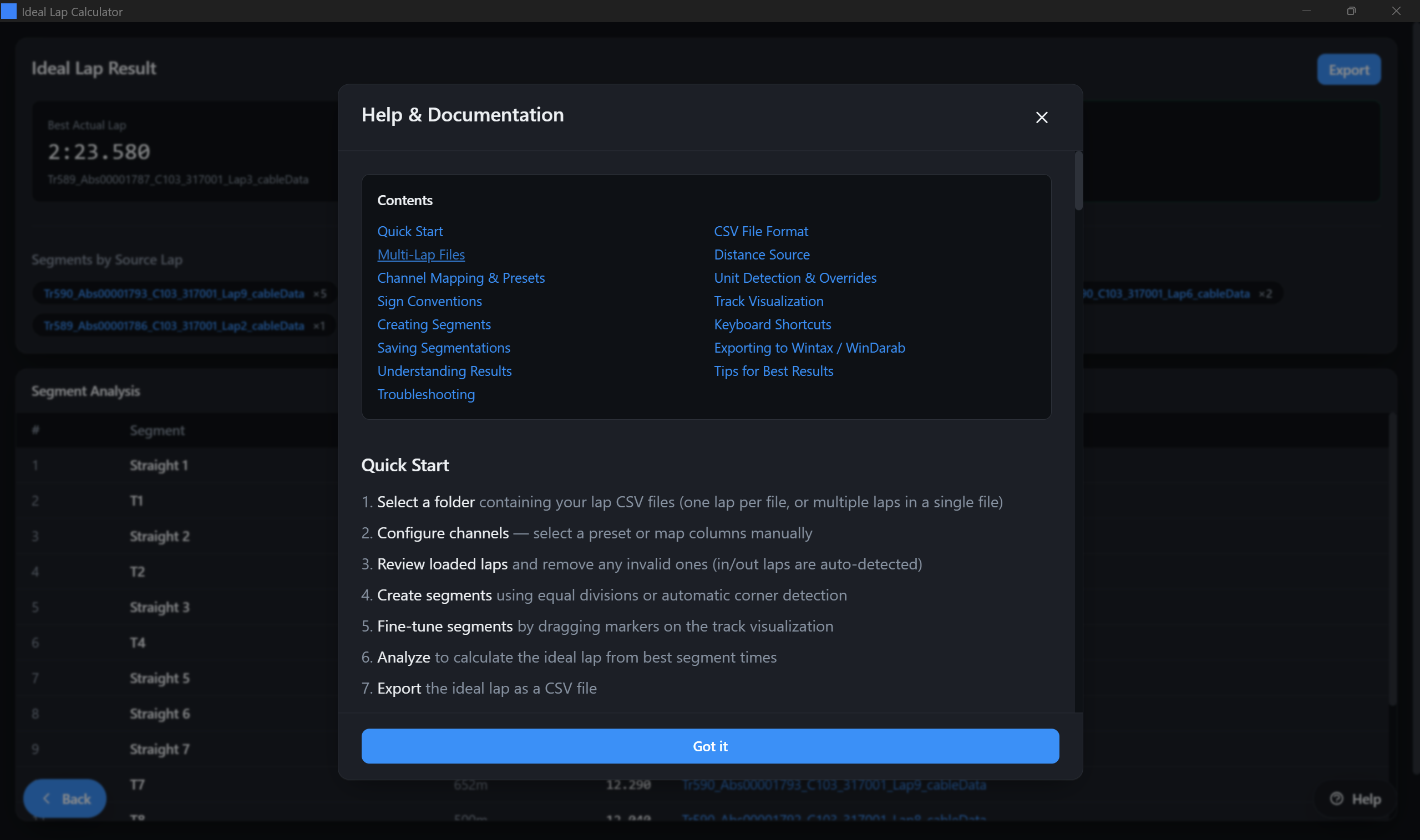
Help & Documentation (In-App)
The app includes a built-in Help modal with a quick index and troubleshooting guidance for common telemetry issues such as units, sign conventions, multi-lap splitting, and track visualization distortion.
Click the Help button in the app (it appears as a floating button on most screens).